In production environments, knowing that your application is “up” is important, but it’s only half the battle. You also need to know if your users are encountering errors.
While tools like Sentry or Bugsnag are excellent, they can be overkill (or over-budget) for smaller projects or self-hosted environments.
In this post, we will tell you how we set up real-time error reporting for our Nuxt.js application using Uptime Kuma.
Why Monitoring Matters
When a user hits a “500 Internal Server Error”, they rarely report it—they just leave. Proactive error monitoring allows you to:
- Detect issues instantly: Fibugs before they affect more users.
- Understand impact: Know if an error is a one-off or a system-wide outage.
- Maintain trust: High availability and bug-free experiences build user confidence.
What is Uptime Kuma?
Uptime Kuma is a fancy, self-hosted monitoring tool that is a great alternative to “Uptime Robot”. It supports various monitor types (HTTP, TCP, DNS, etc.) and notification channels (Telegram, Discord, Slack, Email).
We can set up monitors for various services, for example:
- Monitor database availability
- Monitor HTTP endpoints
- Monitor SSL certificate expiration
- Monitor Docker containers running status
While these are useful and important, we can also leverage Uptime Kuma’s Push Monitor feature to create a custom error reporting system.
The Strategy: “Upside Down” Monitoring
While Uptime Kuma is designed to check if services are online, we can cleverly repurpose it to alert us when errors occur.
This is the core concept of this setup.
Normally, a Push Monitor in Uptime Kuma works like a “Dead Man’s Switch”:
- Heartbeat received: Service is UP.
- No heartbeat: Service is DOWN (Alert sent).
For error reporting, we want the exact opposite:
- No errors (Silence): Service is UP.
- Error occurred (Signal sent): Service is DOWN (Alert sent).
To achieve this, Uptime Kuma provides an “Upside Down” mode.
Step 1: Configure Uptime Kuma
- Create a New Monitor:
- Monitor Type: Push
- Friendly Name: e.g., “Nuxt App Errors”
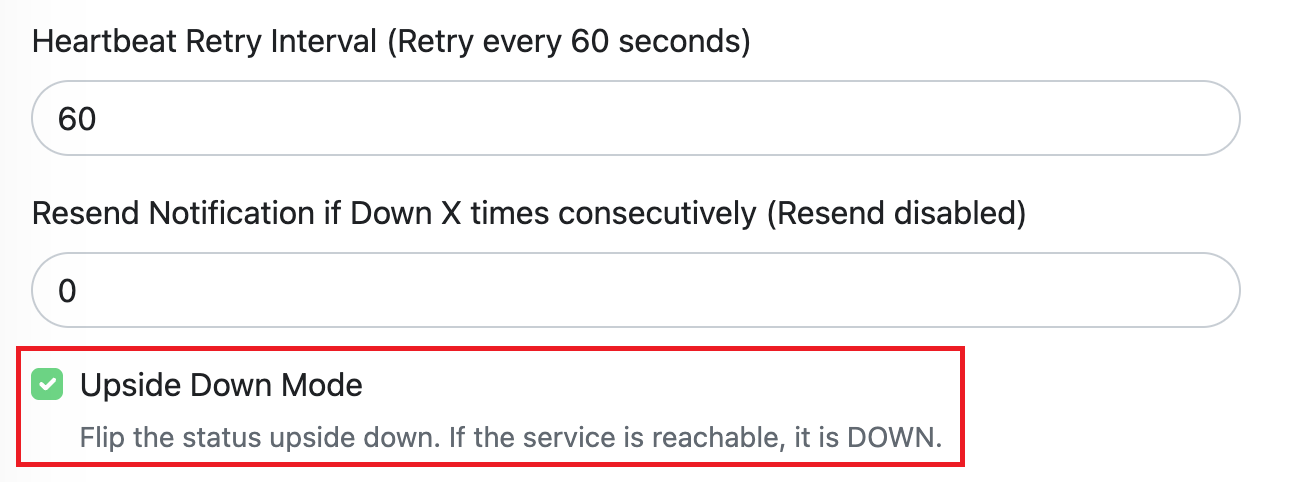
- Enable Upside Down Mode:
- Check the box for “Upside Down Mode”.
- This flips the logic: receiving a “heartbeat” (our error signal) will mark the service as DOWN.
- Set Interval:
- Heartbeat Interval:
60(seconds). - This means if an error triggers the monitor (marking it DOWN), it will automatically recover to UP after 60 seconds of silence. This acts as a “cooldown” and ensures you get fresh alerts for new error spikes.
- Heartbeat Interval:
Step 2: The Nuxt Plugin
We need to catch errors in our Nuxt application and forward them to our monitoring system. Nuxt provides a powerful plugin system with hooks for this exact purpose.
Create a server side plugin file (e.g., server/plugins/error-reporter.ts):
export default defineNitroPlugin((nitroApp) => {
    nitroApp.hooks.hook('error', (error, { event }) => {
        const path = event ? event.path : 'unknown';
        const message = `[Server Error] ${error.message} (Path: ${path})`;

        reportToKuma(message).catch((e) => console.error('Failed to report server error:', e));
    });
});
You can also create a client-side plugin (e.g., packages/web/app/plugins/error-reporter.client.ts) if you want to catch frontend errors:
export default defineNuxtPlugin((nuxtApp) => {
    nuxtApp.hook('vue:error', (error, instance, info) => {
        $fetch('/api/report-error', {
            method: 'POST',
            body: {
                error: error instanceof Error ? error.message : String(error),
                info,
            },
        }).catch((e) => console.error('Failed to report client error:', e));
    });

    nuxtApp.hook('app:error', (error) => {
        $fetch('/api/report-error', {
            method: 'POST',
            body: {
                error: error instanceof Error ? error.message : String(error),
            },
        }).catch((e) => console.error('Failed to report client error:', e));
    });
});
Of course, you have to add the endpoint (/api/report-error) to handle these reports, which we will omit.
For more details on Nuxt error handling, refer to the official documentation.
The most important part is the reportToKuma function, which sends the error details to our Uptime Kuma monitor.
export const reportToKuma = async (message: string) => {
    const token = process.env.KUMA_PUSH_TOKEN;
    const kumaHost = process.env.KUMA_HOST; // e.g., kuma.example.com

    try {
        const url = `https://${kumaHost}/api/push/${token}?status=up&msg=${encodeURIComponent(message)}&ping=`;
        await $fetch(url);
    } catch (e) {
        console.error('[Error Reporter] Failed to report error to Kuma:', e);
    }
};
Don’t forget to add the environment variables to your nuxt.config.ts or .env file!
Summary
By combining Nuxt’s error hooks with Uptime Kuma’s “Upside Down” push monitors, we’ve created a robust alerting system.
- Nuxt catches the error and sends a signal to Kuma.
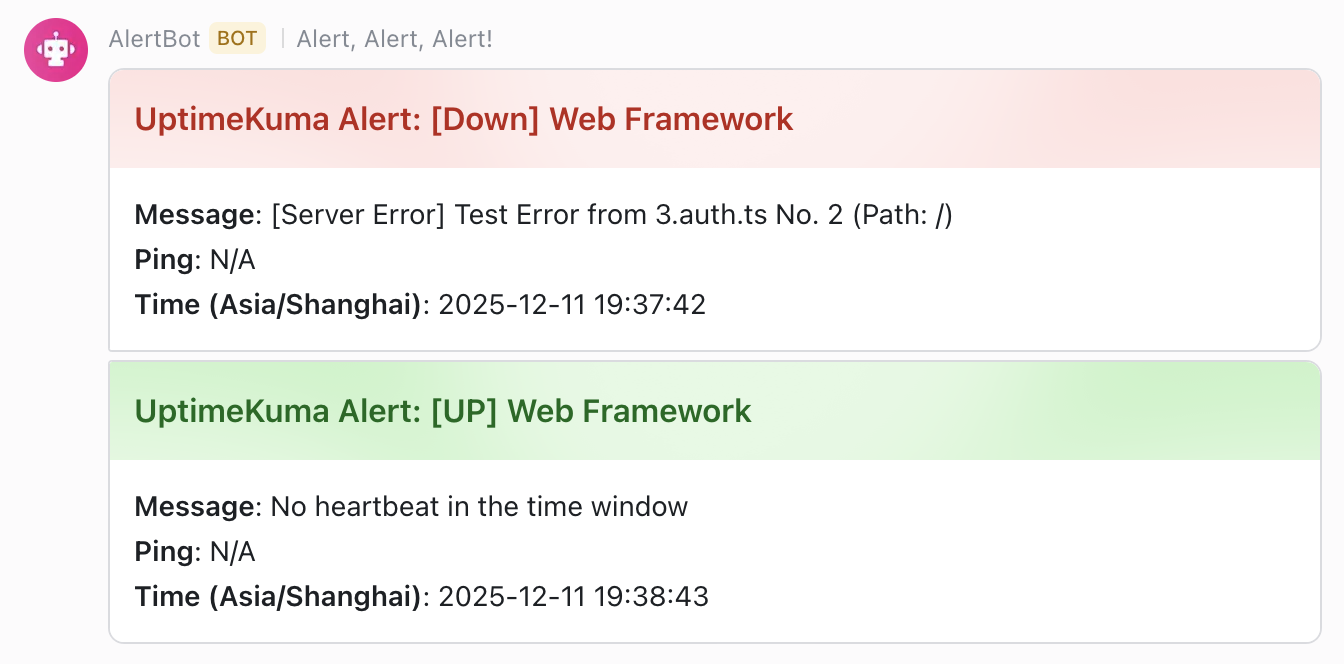
- Kuma flips to “Down” and sends you a notification immediately.
- Kuma resets to “Up” automatically after a minute, ready for the next issue.
This setup ensures you’re always the first to know when something goes wrong, without breaking the bank.